The UI/UX Design Checklist That Fits a 10-Minute Audit

The checklist below works because it forces you to check the same eight to twelve things every single time, instead of relying on whatever catches your eye that day. Checklists function as a QA safety net precisely because they catch the small, boring details, like inconsistent navigation or a contrast ratio nobody double checked, that slip through when a team is racing toward a deadline.
Here is the one-page version. Pull up the screen or flow you're reviewing, work through this list top to bottom, and flag anything that fails.
- Primary action is obvious. A user can spot the main thing to do on this screen within three seconds, no scanning required.
- CTA language is specific. Buttons say "Start Free Trial," not "Submit" or "Click Here."
- Spacing is consistent. Padding and margins follow the same scale across cards, buttons, and sections. No random 13px gaps next to 24px gaps.
- Layout holds at three breakpoints. Check mobile, tablet, and desktop widths. Nothing overlaps, truncates awkwardly, or disappears.
- Contrast passes at a glance. Body text and buttons look readable against their background, not just "close enough."
- Focus states are visible. Tab through the screen with a keyboard. You should always see where focus lives.
- Critical states are designed. Loading, empty, and error states exist for every data-driven element, not just the happy path.
- Copy is scannable and specific. Headlines and labels tell the user what will happen, not vague filler like "Learn More."
- Touch targets are workable. Buttons and links are big enough to tap without a second attempt.
- Assets are export-ready. Icons, images, and components are named and organized so a developer can find them without asking.
One-minute version: one designer, one device, scroll through the flow once, flag anything that breaks the first five checks above.
Ten-minute version: two people (a designer and a QA engineer or PM), desktop and mobile side by side, run the full ten-point list, and log every fail in a shared doc.
Keep a copy of this list somewhere your whole team can reach without asking you for it. A Figma checklist page pinned to your team library or a shared Google Drive doc works fine. A printable version taped near a monitor works too. What matters is that it's the same list every time.
Key Takeaways
A UI/UX design checklist works best as a repeatable audit tool run at multiple project gates, not a one-time pre-launch formality.
| Point | Details |
|---|---|
| Run the 10-minute audit first | Use the one-page checklist at kickoff, pre-review, and pre-handoff before attempting a deeper pass. |
| Match depth to the gate | Lightweight checks for daily work, deep checks for payment, onboarding, or account flows. |
| Automate what repeats | Contrast checks and basic accessibility scans should run automatically, not manually every time. |
| Store one canonical version | Keep the checklist in a Figma page for in-context use and a Google Drive doc for version history. |
| Scale with a partner when needed | Yslootahtech supports teams that need design system governance or automated checklist enforcement across multiple teams. |
Table of Contents
- When to Run a UI/UX Design Checklist and Who Owns It
- What to Check at Each UX Design Process Stage
- Platform-Specific Checks for Website, Web App, and Mobile
- Design System and Component Checklist
- Checking User Flows, Edge Cases, and State Transitions
- Fast Accessibility Checks Anyone Can Run
- Developer Handoff Checklist That Prevents Rework
- Tools and Templates to Run This Checklist Without Extra Overhead
- Making Checklists Stick Across a Real Team
- Common UX Pitfalls a Checklist Catches Before Launch
- Writing Clear Microcopy, Errors, and Labels
- What Most Teams Get Wrong About Checklists
- How Yslootahtech Helps Teams Scale a UI/UX Design Checklist
- Frequently Asked Questions
- Sources
When to Run a UI/UX Design Checklist and Who Owns It
The value of a checklist collapses fast if it only gets used once, right before launch, by whoever happens to be free. Practitioners who treat checklists as repeatable audit tools used at both discovery and final QA, rather than a one-time gate, catch more problems earlier, when they're cheap to fix.
Four moments deserve a checklist pass, every project, no exceptions:
- Kickoff. Confirm goals, personas, and success metrics are documented before anyone opens Figma.
- Pre-design review. Before a design goes to stakeholders, run the spacing, hierarchy, and copy checks.
- Pre-handoff QA. Before a design ships to engineering, run the full component and accessibility list.
- Pre-release smoke test. Before code goes live, run the critical-flow and error-state checks one more time.
Depth should scale with role and stakes, not stay fixed. A junior designer running a quick self check before a stand-up needs the one-minute version. A QA engineer signing off on a payment flow needs the deep version, every field, every state.
| Role | Cadence | Depth |
|---|---|---|
| Designer | Daily, before sharing work | Lightweight (5-point self check) |
| Design lead | Weekly, at design review | Medium (full one-page checklist) |
| QA engineer | Pre-handoff and pre-release | Deep (full checklist plus edge cases) |
| Product manager | At stage gates (kickoff, launch) | Medium (goals, metrics, acceptance criteria) |
Pro Tip: Version your checklist the same way you version code. Keep the canonical copy in a shared Google Drive folder or a locked Figma page, date-stamp updates, and never let team members keep private copies that drift out of sync.
What to Check at Each UX Design Process Stage
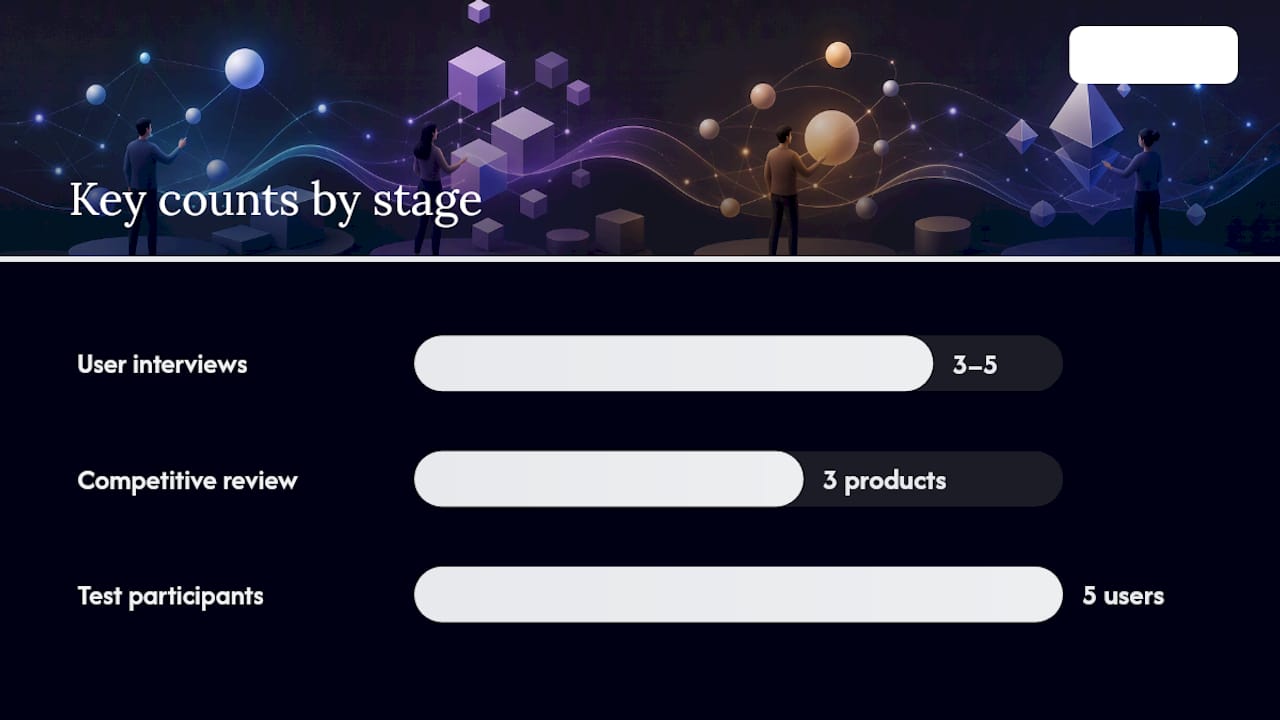
A UI/UX design checklist earns its keep when it's tied to the actual gates a project passes through, not applied uniformly to everything from a rough sketch to a shipped feature. Design Thinking frames the work as five iterative phases: Empathize, Define, Ideate, Prototype, and Test. Most product teams map those onto Discovery, Research, Ideate, Prototype, Test, and Launch, and each stage needs a different set of checks.
Discovery
- Business goal is written down in one sentence.
- Target users and their core problem are named, not assumed.
- Success metrics are defined before design starts.
- Constraints (budget, timeline, technical limits) are documented.
- Stakeholders have signed off on scope.
Research
- At least three to five user interviews or usability sessions are logged.
- Personas or user segments reflect real research, not internal guesses.
- Competitive review covers at least three comparable products.
- Pain points are ranked, not just listed. The Gov is a solid model for structuring this stage with actual users rather than assumptions.
Ideate
- Multiple concepts exist for the core flow, not just one.
- Rough sketches or wireframes cover the primary user journey.
- Team has reviewed and narrowed to one direction with reasoning attached.
Prototype
- Key flows are clickable, not static.
- Interaction specs exist for anything non-obvious (drag, swipe, multi-step forms).
- Edge cases (empty, error, loading) have at least a placeholder design.
Test
- Usability test script exists and covers the primary task.
- At least five test participants complete the core flow.
- Findings are documented with severity ratings, not just notes.
Launch
- All handoff assets are exported and labeled.
- Analytics events are mapped to success metrics from Discovery.
- Rollback plan exists if the release breaks something critical.
Run the lightweight version of each stage's checklist for small features or copy tweaks. Save the deep version for anything touching a core flow, payment, onboarding, or account settings.
Platform-Specific Checks for Website, Web App, and Mobile
A UI design guidelines checklist that treats a marketing website the same as a mobile app misses the constraints that actually matter on each platform. Split your checks by platform, then run the shared checklist on top.
Website
- Page load feels fast; hero content appears before secondary assets finish loading.
- Navigation is consistent across every page, no orphaned menus.
- Forms show inline validation, not just an error summary at the bottom.
- Content hierarchy uses heading levels correctly, not just visual size.
Web App
- Persistent navigation (sidebar or top nav) stays visible during scroll on dashboard views.
- Tables and data grids handle sorting, filtering, and empty results without breaking layout.
- Session timeout and reauthorization flows are designed, not left to default browser behavior.
- Loading states differentiate between "fetching data" and "no data exists."
Mobile App
- Tap targets meet a workable minimum size across DPI variations, since touch targets need to scale with physical device metrics rather than a single fixed pixel value.
- Content respects safe margins. Samsung's One UI guidance recommends at least 24dp of side margin for modern edge-to-edge phone layouts, a useful baseline even outside the Android ecosystem.
- Gestures (swipe to delete, pull to refresh) have a visible fallback for users who don't discover them.
- Offline and low-signal states are designed, not left blank.
For deeper platform work beyond this checklist, Apple's Human Interface Guidelines remain the reference for iOS patterns, and Material Design's current Material 3 guidance covers Android and web component behavior. Teams building desktop or Linux-targeted software should also keep GNOME's Human Interface Guidelines on hand for consistent keyboard interactions and desktop conventions.
Pro Tip: On mobile, prioritize thumb reach and one-handed use over visual density. On desktop, prioritize information density and keyboard shortcuts over touch-friendly spacing. Trying to satisfy both with one layout usually satisfies neither.
Design System and Component Checklist

Treat your design system as the source of truth and the checklist as the tool that verifies components are being used correctly, not a place to redefine how they work. Confusing the two is a common trap. A checklist that tries to re-litigate component logic every review cycle slows teams down instead of speeding them up.
Design tokens to verify:
- Colors map to named tokens (not hardcoded hex values) in both design files and code.
- Spacing follows a defined scale (4px, 8px, 16px, and so on), not arbitrary values.
- Type scale is documented with size, weight, and line height for each level.
Component states to check for every interactive element:
- Default
- Hover
- Focus
- Disabled
- Loading
- Empty
- Error
A component missing even one of these states, especially error or empty, is the single most common gap a component-state matrix catches. Copy this structure into your own component specs:
| Artifact | What to supply | Owner |
|---|---|---|
| Figma master component | Linked, versioned component with all states built | Designer |
| Code reference | Link to the component in the codebase or Storybook | Developer |
| Token mapping | List of tokens used (color, spacing, type) | Designer |
| Accessibility notes | Contrast ratio, ARIA role, keyboard behavior | Designer/QA |
| Usage guidance | When to use this component vs. a similar one | Design lead |
Checking User Flows, Edge Cases, and State Transitions
A screen can pass every visual check and still fail the moment a real user hits a network error or an empty search result. Flow checks exist to catch exactly that gap.
Cover the full journey, not just the ideal path:
- Happy path: user completes the task with no friction.
- Alternate paths: user takes a detour (edits an entry, changes a filter) and still reaches the goal.
- Cancellation and recovery: user backs out mid-flow and can either resume or safely exit.
- Empty and error states: every data-driven container needs an explicit fallback for null results, zero results, and failed loads, rather than a collapsed layout or a blank white box.
Edge cases worth checking on every flow that touches live data:
- What happens on a network failure mid-submission?
- What does a brand-new user see with zero data (empty state, not a broken chart)?
- What happens when a user denies a permission (location, camera, notifications)?
Tag analytics events at each meaningful step of the flow, not just at completion. If you can't tell from your dashboards where users drop off, the flow wasn't instrumented correctly, and no amount of visual polish will fix that blind spot. A simple flow diagram with arrows for each decision point, and a note on which step fires which event, makes this easy to hand off to engineering.
Fast Accessibility Checks Anyone Can Run
Skipping accessibility until a dedicated audit is one of the most expensive habits a design team can have, because most of the highest-impact checks take seconds. Build these into every pass, not a separate quarterly review.
- Color contrast: body text should read clearly against its background at a glance; if you're squinting, it fails.
- Keyboard navigation: tab through the entire screen. Every interactive element should be reachable and show a visible focus state.
- Focus order: tab order should follow visual and logical order, not jump randomly around the page.
- Alt text: every meaningful image has a description; decorative images are marked as such so screen readers skip them.
- ARIA roles: custom components (dropdowns, modals, tabs) announce their role and state to assistive technology, not just visually.
A five-minute screen reader pass, VoiceOver on Mac or iOS, TalkBack on Android, catches problems that a purely visual review never will. Turn it on, close your eyes, and try to complete the primary task using only sound and gestures.
WCAG 2.1 success criteria remain the accepted baseline for what "accessible" actually means in a testable sense, and they're worth bookmarking rather than trying to memorize. For broader inclusive design context beyond pass/fail contrast checks, GOV.UK's accessibility guidance covers the reasoning behind the rules, which helps teams make better judgment calls on ambiguous cases.
Developer Handoff Checklist That Prevents Rework
The gap between a finished design and a correctly built product usually comes down to what did or didn't make it into the handoff package. A UI design review checklist at this stage should function as a contract, not a suggestion.
Assets to hand off:
- Annotated Figma frames showing spacing, sizing, and interaction notes.
- Exported assets (icons, images) at the correct resolutions and formats.
- A token table listing every color, spacing, and type value used.
- Accessibility notes: contrast ratios, focus order, ARIA roles for custom components.
- A QA test script covering the primary flow and known edge cases.
Pre-release smoke test:
- Every critical flow (signup, checkout, core task) completes end to end.
- Form validation triggers correctly for both valid and invalid input.
- Page load and interaction response times feel acceptable on a mid-range device.
| Deliverable | Owner | Success criterion |
|---|---|---|
| Annotated frames | Designer | Every screen has spacing, state, and interaction notes |
| Exported assets | Designer | Files match naming convention and required formats |
| Token table | Designer/Design lead | Every used token is listed with its value |
| QA test script | QA engineer | Script covers happy path plus top three edge cases |
| Smoke test sign-off | QA engineer | All critical flows pass on staging before release |
A usable acceptance-criteria template for a ticket: "Given [user state], when [action], then [expected result], and the error/empty state shows [fallback]." Paste that structure into every ticket touching a data-driven screen, and ambiguity mostly disappears.
Tools and Templates to Run This Checklist Without Extra Overhead
You don't need new software to run any of this. You need one canonical checklist, stored somewhere everyone can reach, and a habit of actually opening it.
- Figma: build a dedicated checklist page inside your working file, or use a checklist plugin, so the audit lives next to the design instead of in a separate app nobody opens.
- Google Drive: keep the canonical, editable version of your checklist here as a shared doc or sheet. Figma is great for in-context checks; Drive is better for a version history everyone can trust.
- Contrast checkers: browser extensions or standalone tools that check color pairs against WCAG thresholds in seconds.
- Accessibility helpers: automated scanners that flag missing alt text, poor heading structure, or ARIA issues before a human reviewer even opens the screen.
- Simple automated tests: even a lightweight script that checks for broken links or missing form labels catches things a rushed manual review misses.
Set up the Figma checklist page once, link it in your team's onboarding doc, and update the Google Drive master whenever your process changes. If you notice checklists being run inconsistently across teams, or your design system has grown past the point where one person can govern it manually, that's usually the signal to bring in outside help for governance and automation rather than trying to patch it with more documentation.
Making Checklists Stick Across a Real Team
A checklist only works if it survives contact with a busy sprint. The teams that get real value from a UX design evaluation checklist build it into rituals that already exist, rather than adding a new meeting nobody attends.
Concrete ways to embed it:
- Add a checklist link directly in the pull request or design review template so it's impossible to miss.
- Spend two minutes of every design review running through the one-page version out loud.
- Require a checked-off copy attached to every handoff ticket before engineering picks it up.
A scenario worth remembering: a team ships a dashboard widget that looks polished in every demo because the demo always has data. Three weeks post launch, a support ticket comes in from a new account with zero data, and the widget renders a broken, half-collapsed layout. A five-second empty-state check during design review would have caught it before a single line of code shipped.
Pro Tip: Treat your checklist as an audit tool, not a design system. Its job is to catch what a design system alone won't catch, inconsistent usage, missed states, forgotten accessibility checks, not to define how components should behave in the first place.
Design leads who standardize this process report that the biggest benefit isn't fewer bugs. It's faster decisions, because every reviewer is checking the same ordered list instead of arguing from personal preference.
Common UX Pitfalls a Checklist Catches Before Launch
Most UX failures aren't exotic. They're the same handful of mistakes repeating across different products, and a checklist catches nearly all of them if you actually run it.
- Designing only the happy path. Teams spend 90% of their time on the ideal flow and 10% on everything else, when real usage skews the other way.
- Inconsistent navigation patterns. A back button that behaves differently on two screens erodes trust fast, even if users can't articulate why.
- Ignoring loading states. A blank screen for two seconds feels broken; a skeleton screen or spinner for the same two seconds feels intentional.
- Overloading a single screen. Cramming every possible option onto one view instead of sequencing decisions increases errors and abandonment.
- Testing only on ideal conditions. Fast wifi, full battery, latest device. Real users have none of those things reliably.
- Skipping the error message review. Generic messages like "Something went wrong" leave users stuck with no next step.
Every one of these shows up as a specific line item somewhere in the checklists above. The pattern holds: pitfalls aren't usually creative failures, they're checklist gaps.
Writing Clear Microcopy, Errors, and Labels
Copy quality is a UI/UX problem, not a separate writing task handed off at the end. Vague or inconsistent text undoes good visual design fast, because users read words before they process layout.
- Buttons and CTAs should state the exact outcome: "Save Changes," not "OK."
- Error messages should say what happened and what to do next: "Your card was declined. Try a different payment method," not "Payment failed."
- Empty states should tell the user what to do, not just that nothing exists: "No projects yet. Create your first one," not "No data."
- Labels should stay consistent across the entire product. If a field is "Full Name" on signup, it shouldn't become "Name" on the profile page.
- Tone should match the stakes of the moment. A playful tone on a delete-confirmation dialog reads as careless, not friendly.
Run a quick copy pass alongside your visual check: read every button, label, and message out loud. If it sounds like something a person would actually say, it passes. If it sounds like internal jargon, rewrite it.
What Most Teams Get Wrong About Checklists
The conventional advice treats a checklist like a one-time gate you run right before launch, a final sweep to catch anything embarrassing before it ships. That framing is backward, and it's why so many checklists gather dust in a forgotten Notion page after the second sprint.
A checklist earns its value from repetition, not thoroughness. A twelve-point list run consistently at four different stages catches more real problems than a hundred-point list run once, right before launch, when fixing anything costs ten times more than it would have at Discovery. The teams that get this right treat their UX design process as a series of small, cheap checkpoints rather than one expensive final exam.
The other misconception is treating checklists and design systems as competitors, as if a good enough design system makes checklists unnecessary. They solve different problems. A design system defines what a component should look like and do. A checklist verifies that a specific screen, in a specific context, is actually using it correctly, and that the states nobody thinks about, empty, error, loading, exist at all. Teams that skip this step because "we have a design system" are the ones most likely to ship a beautiful component in a broken layout.
If you take one thing from this: run the ten-minute version at every stage gate before you ever attempt the full deep audit. Depth without repetition is just theater.
How Yslootahtech Helps Teams Scale a UI/UX Design Checklist
A single-page checklist works fine for one team on one product. It stops working once you have five product teams, three design systems drifting out of sync, and no one enforcing the same standard at handoff. That's the point where a checklist stops being a document and needs to become governance, tooling, and shared accountability across teams.
Yslootahtech works with product and engineering teams across industries to build the design and development infrastructure that makes checklists stick at scale, from structured UX/UI design engagements to full application builds that need design and code moving in sync from day one. If your team is past the point of manually copying a checklist into every ticket and needs governance, automated accessibility checks, or a design system that multiple teams can trust, that's exactly where a dedicated partner earns its cost back quickly. Our UX/UI design services cover audits, design system builds, and full-cycle design work, and our application development team picks up the handoff without losing anything in translation. If you're building out design review criteria as part of a hiring push, this UX/UI designer resume guide is a useful companion resource for screening candidates against the same standards. Get in touch to scope a checklist and design system audit for your team.
Frequently Asked Questions
How often should a team run a UI/UX design checklist? Run the lightweight version daily on active work, and the full checklist at four fixed gates: kickoff, pre-design review, pre-handoff, and pre-release. Waiting until launch to run it once defeats the purpose.
What's the difference between a checklist and a design system? A design system defines what components should look like and how they should behave. A checklist verifies that a specific screen is using those components correctly and that every required state, including empty and error, actually exists.
Do I need special tools to run a UI/UX design checklist? No. A Figma page and a shared Google Drive doc cover most teams. Contrast checkers and basic accessibility scanners speed things up but aren't required to get started.
Which accessibility checks matter most in a quick 10-minute audit? Color contrast, keyboard navigation with visible focus states, descriptive alt text, and a fast screen reader pass on the primary task. These four catch the majority of accessibility gaps without a full compliance audit.
When should a team bring in outside help for design checklists? When enforcement breaks down across multiple teams, when a design system needs governance nobody has bandwidth for, or when automation is needed to run checks consistently instead of relying on manual review every time.
Sources
Beyond the checklists above, these sources are worth keeping bookmarked for anything this article couldn't fully cover:
- The 5 phases of design thinking (AMA)
- One UI layout grid (Samsung Developer)
- UX Checklists For Interface Designers (Smashing Magazine)
- Gov
For a broader look at how checklists fit into the full design lifecycle, this playbook on optimizing UI/UX design walks through workflow examples beyond what fits in a single checklist article.